Archive for the ‘Technical’ Category

TapSkyped up

5 Jun 2008 09:43 by Rick

I normally use these posts (the technical ones that is) to highlight problems with products and help people get around them. This one is different. Skype is brilliant and easy! For those that don’t know, it is an internet phone system.

The Mac Pro is one of the few Apple machines that doesn’t come with a microphone so I had to get one first. Unlike a PC it only has a Line-in socket (low sensitivity) and requires a powered microphone. It is a shame that it doesn’t provide 3v phantom power for electrets but I don’t suppose there is much call for it. Powered mics are remarkably hard to get and the easier solution is a USB microphone—it also leaves the line in socket free for other things. Some people recommend using a headset but we didn’t find it necessary.

Then install the software, create an account (most of the good names are already taken unfortunately) and you are away. The only criticism I have is that the Skype web site doesn’t give you much help around the hardware side but otherwise it is fine.

The quality is excellent and it is easy to use. I was particularly impressed by the easy and high quality conference call facility. Now if only the company system was as good as that!

We also installed on a windows laptop and that was just as straight forward. The software version is different and the windows version looks a lot more cluttered but it works just as well, even with the laptop pin-hole microphone and tinny speakers. We found that it scans your Outlook address book for known phone numbers, that may or may not be useful, but they do work quite well; apparently your first call to a “real phone” is free. Internet to Internet calls are free all the time so it is very popular for people with families dispersed around the world. It will also do video calls (I don’t think we will bother), IM chat and SMS.

Finally a recommendation. Unless you want to restrict your calls to a few designated people, fill in at least the basic information into your profile. Think of it as a phone book. I would suggest the minimum is your real name, country and city. Then at least callers can have a sporting chance of getting the right person.

TapThe end of XP

3 Jun 2008 09:17 by Rick

Windows XP will not be available much after 30th June as that is the official end date both for the retail version and the OEM version pre-installed on machines. You may be lucky after that as it will be “while stocks last” and smaller independent system builders have until January to stop, but don’t cut it too fine if you must have one. Time to check if you have enough licences for your future needs.

Support will be available until April 2014 but I am sure that it will be a gradual wind down.

TapCanon MP600R configuration

28 May 2008 10:58 by Rick

I am not going to talk in this post about how to setup this device, because it works well with the instructions provided and in most normal situations will not give you any trouble. It is a good printer and an acceptable scanner. I will, however, start off with a very strong warning—Once it is configured, leave it alone. This applies to other Canon network devices as well such as the MP800R and IP5200R.

My problem arose when I moved my wireless access point to a location that was out of range of the device. As there was a switch nearby, I decided that the best solution was to change from wireless to wired. This was not easy and to explain why and give a solution is going to get very technical and complex.

Problem description

The heart of the problem is that this multifunction device does so many things and seems to achieve them (or at least initiate them) by broadcast and recognition of the ethernet MAC address using a proprietary protocol. Here we can spot two consequences immediately: first it will only work on the same subnet (but that is generally not a problem for home) and secondly, the wireless and wired interfaces have different MAC addresses (ending in a4 and a5 respectively in my case).

The functions that the device performs are

  • Printing—this is pretty much understood and well supported in both Windows XP and MacOS X. The drivers behave in a standard way and using the tools available it is fairly easy to create a new port and printer device—but don’t bother because of what follows.
  • Scanning initiated from the device—This depends on a custom daemon “Canon IJ Network Scan Utility” which is waiting for messages. It is configured to watch for particular MAC addresses so doesn’t work if you switch. There is no re-configure tool available but a reinstall does add the new address to the list. Again, don’t do it yet because of what follows.
  • Scanning initiated from the computer. This uses the “Canon MP Navigator 3.0.” I am not exactly sure how this works but it must need to know about the scanner address because it didn’t work anymore, and no amount of reinstalling would convince it to work.
  • Mounting a memory stick. This seems to work ok because the mechanism knows about both MAC addresses anyway, but I haven’t tested it.

A Solution

While playing with this and trying to get things to work, I got into a situation where one (Windows) machine couldn’t see the device at all, even during installation and another could see it with the “Canon IJ Network Tool” but could not print or scan. I came to the conclusion that the only way forward was to start again from scratch. To clear the deck I un-installed absolutely everything. It helped that I had no other Canon software at all on the system so after using the official uninstallers I deleted the Canon folder in Program Files and, using regedit, deleted all software\canon keys in the registry. I believe that this last stage is important because that is where the addresses are stored. Now do a reboot to clear the air.

Having done this, I re-installed everything needed including configuring the printer using the USB connection, just as if it was brand new. And it works.

I haven’t done this on MacOS X because I have no idea how to uninstall things this thoroughly. Using standard tools and re-installing over the top I have got printing and remote initiated scanning working but computer initiated scanning doesn’t even start. It doesn’t help that the Canon installer keeps insisting that the machine be rebooted, an anathema to Unix based machines.

Would updated drivers have improved things? I don’t believe so but didn’t get the chance to find out as it wasn’t at all clear which versions I already had or what was available for download.

Lessons learned

  • Get it right first time. Plan ahead and think before you start to install.
  • This device is not designed for larger networks. e.g. it won’t work with multiple subnets and I don’t think two of these devices configured on the same computer would work too well either. Although there is a device configuration tool (“IJ Network Tool”) there is nothing to reconfigure the computer end. Even replacing the printer with a new one would be difficult.
  • Don’t rely on Canon tech. support. The web site is hopeless and no one got back to me at all from a support ticket [see below].
  • If possible, get one device to do one job, they are much easier to understand. I was shopping for a wired network inkjet printer. All that was available was this wireless combination printer/scanner/copier. At least it doesn’t do fax!

All this is a great shame because Canon make good printers which are economical to run and I have been very happy with them. I hope I will continue to be happy with this one.

Update: later the same day I had an email reply from Canon support. They said

In Mac, you need to select the device and move it to the rubbish bin and the same with software. Just move everything to rubbish bin, device and software. Restart before installing again.

I understand dropping applications into the Trash, but devices? Eventually I took the same drastic action as on the PC. I dropped everything that said Canon into the Trash including stuff under /Applications, /Library/Application Support, /Library/Printers and /Users/Shared. Then rebooted and installed everything from scratch again even using an (extended) USB cable. I thought initially that I was still in the same position as MP Navigator still said “Scan Failed” but on the second click it worked. Trying again, it seems it always fails on the first click. I am not convinced that I managed to delete everything as it still seems to know my scanning settings (600dpi rather than the default 300) but it seemed to be enough to do the trick.

For reference, “Canon IJ Network Scan Utility” (the daemon), “Canon IJ Network Tool” (for configuration) and “Canon IJ Printer Utility” (for printer maintenance and default settings) are all under /Library/Printers/Canon/BJPrinter/Utilities. “Canon IJ Network Scanner Selector” (to pick which scanner to use I suppose) is under /Library/Application Support/Canon/ScanGearMP/Utility. “MP Navigator 3.0” is under /Applications/Canon Utilities. This is stuff that should be in the manual.

TapUser profiles in WordPress

20 May 2008 11:30 by Rick

For some time I have been having problems with registered users. Not the dozen or so users that I know about who either contribute to the site or are left over from the days when I insisted on registration before commenting. No, these are ones where “people” have found the registration page, created a profile but I have never heard from them since. I have been looking for a way to clear them out, which is not easy because I have no way to tell if they have actually commented using that profile and if I delete those, then the comments disappear with them. I have been looking around for a plugin to help and in the mean time I have been deleting ones with email addresses in Russia, Bulgaria and Poland—it is not xenophobia, just that I know that there is a 99% chance that they are spammers.

One possible plugin that I have tried is loginlogger. This keeps a track of when people have logged in. I was hoping it did a bit more but even that has been fascinating. Apart from my own connection, which I know about, I had well over 100 failed logins over a 2 hour period last night, and the usernames were quite repetitive; brutal2008, Reiki, kazikr, broker1980, watroba50, smiglidigli, bombastik2008, etc. occur quite often. These names don’t appear in my roster (but they may have once and I have deleted them, I don’t keep track) but doing a Google search on them reveals a common pattern; most hits are either on SEO sites or are Polish or Russian sites or in those languages.

So my policy seems to be justified—that is where the spammers are. To avoid the problem in the future I could have disabled registration altogether. It isn’t used a lot, but I like to give regular commenters the option of having their profile stored if they want to. So what I have done is install the Sabre plugin. This is a very flexible registration control system with options for Capcha, arithmetic tests, email confirmation and other validation tecniques. I am hoping that with minimal effort I can foil the majority of automatic bot registrations.

TapSonos bonus

17 May 2008 11:37 by Rick

A problem we have had with our very tall house has been getting Wi-Fi access from the top to the bottom. Our office, with all the gear, is at the top but Mary likes to work at the bottom while eating breakfast etc. In order to get a decent signal I had resorted to putting the access point on the top landing with the aerial horizontal and sticking over the edge of the stairs. To reach this required a cat5 cable out of the office door, behind the book case and over the bedroom door. The power had to come out under the bedroom door as there were no convenient sockets.

Then Dave and I had a wizard wheeze. The Sonos music system runs wireless throughout the house and each box has a built in switch with 2 or 4 RJ45 sockets. So I have now connected the access point to the Sonos in the sitting room (the middle of the house) and reception works anywhere with no trailing wires. It needs two wireless hops, one to the access point and then one over SonosNet to the router but it doesn’t seem to affect performance very much.

TapAVG 7.5 End of Support

13 May 2008 10:51 by Rick

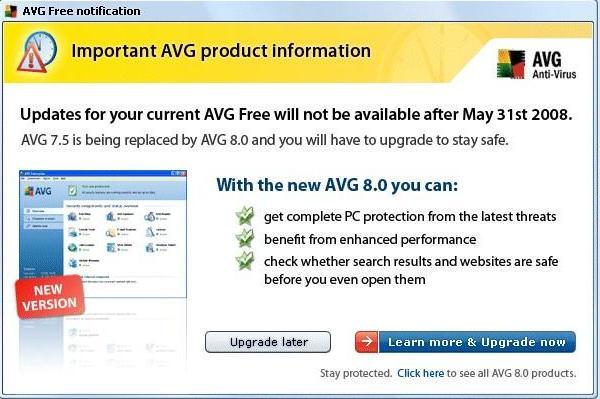
Despite some messages to the contrary, AVG 7.5 End of Support date is 31 Dec 2008. Changes to this policy are not anticipated but this is the link to watch. Even some notices out of the product itself say other dates.

Misleading AVG Alert

These are WRONG.

TapWindows XP SP3 Quality

09:46 by Rick

One of the first screens you are presented with when installing Windows XP Service pack 3 (from the CD version) is one that asks “What to know before installing Service Pack 3.” A useful feature you would think, except that when you click the link a page opens in the browser headed “More information about installing Service Pack 2” and says “2” all the way down so I have no idea if any of it is relevant. If you click through to the “Readme” it seems to be more about SP3.

This may be a trivial point but doesn’t encourage confidence in the Quality Assurance at Microsoft.

Update: 29 May 2008—Although I have had no trouble with SP3, having now installed it on 4 desktops, 2 laptops and one virtual machine, there are strong reports about some problems. In particular owners of HP machines using AMD processors should hold off as should users of Norton Internet Security (well knock me down with a feather).

TapMac Pro keyboard with Windows XP

7 May 2008 21:53 by Rick

I am having a few problems using this. I am getting used to it in Mac mode but in VMware Fusion running Windows (or Ubuntu) it is a bit of a pain. There is only mapping for genuine PC layouts. This is what I get:—

VMware
Mac Win(US) Win(UK)
± ~ ¬
§ ` `
@ @
£ # £
@
| | ~
\ \ #
~ | |
` \ \

This means I either have to touch type and think PC when using Windows ignoring the key caps (if I use the UK layout) or lose the £ and ¬ signs (if using the US layout). Neither is very satisfactory. In UK format I can get € (Ctrl-Alt 4) and ¦ (Ctrl-Alt §) but neither in the US layout.

Update: The best answer I can come up with at the moment is to set the guest to use the US international keyboard. This has the basic keys in the same place as the US keyboard but offers additional ones using Ctrl-Alt. This would fix the problems with @, “, \ and | but still leaves ~, ` and # wrong just as with the standard US layout. € becomes Ctrl-Alt 5 and £ is Ctrl-Alt 4. I am not sure if I prefer that or not.

The right solution would seem to be for VMware to map the keyboard through to the guest in some way.

Update: 30 May 2008. It seems the right solution is rather different as the helpful people on the VMware forum pointed out. For Windows, what you need to do is install the Boot Camp drivers. These are intended for Mac systems that dual boot into Windows and contain all the dedicated drivers for the Apple hardware. Quite a bit of it is not relevant for a VMware guest but other parts, such as the Keyboard drivers are. They are to be found on the Mac OS X install disk which is in a magic format so that, when mounted on a Windows system, it looks like a Windows software install disk. Allow it to autorun (or force it if necessary) and the package will install. Then, after a reboot, new devices will appear in the Keyboard menu which solves the problem. Now the characters that appear on the screen are the same ones as printed on the keys. I wonder how you do the same thing in Ubuntu?

TapVMware Fusion 2 (Beta)

11:16 by Rick

Team Fusion have announced the availability of the first public test of the new version. The big advantage for me is that they will be supporting multi-screen clients so I will be able to virtualise my EasyWorship preparation platform—the last major application I have on a real PC. I wonder if that means it will be usable from a MacBook live to a projector?

Update: Apparently it does 🙂

TapUbuntu dev platform – loose ends

10:25 by Rick

Having installed a virtual client for web development using Ubuntu desktop under VMware Fusion there are just a few loose ends to tidy up.

  • We need it to have a fixed IP address so we can find it easily from the rest of the network. You can either modify the client so that it doesn’t use dhcp and assign a fixed address or configure your dhcp server (usually part of the router) to assign a fixed address to the incoming request. I chose the latter. At the same time you can tell your clients about it (in the hosts files) as it won’t be resolved by DNS.
  • It would be convenient to have ssh and ftp available to completely mimic the production server. This is described below.
  • We need to install the VMwareTools to improve the desktop interface. There is a good guide to that on the Ubuntu Tutorials.

Installing ssh is as simple as
sudo apt-get install openssh-server
Similarly ftp can be done using
sudo apt-get install wu-ftpd
but there is a little configuration to do for the latter. Wu-ftpd is set up for inetd and we have xinetd installed by default so the configuration file needs to be converted. A script is provided to do that.
sudo su
xconv.pl < /etc/inetd.conf > /etc/xinetd.conf
exit

but beware if you have already customised xinetd.conf as this will lose them.

^ Top