Archive for the ‘ChurchTech’ Category

TapWordpress Event Plugins

23 Oct 2008 13:45 by Rick

Looking for plugins for Wordpress (or probably any other package) is very frustrating. First you have to search the directory (which, I agree, is a big improvement on what it used to be) and sift out the possible from the unlikely. Then look at the descriptions, which are often completely inadequate, and test the promising candidates.
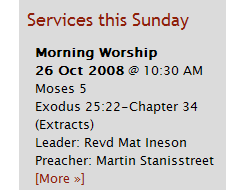
Upcoming ServicesI have been looking for an Event system for the church web site—one that allows you to post-date items and list upcoming events, particularly services. There are a number based around iCal and Google Calendar but I didn’t want to get into that level of complexity and, anyway, a calendar based presentation is not as direct and immediate we wanted. Eventually I narrowed it down to two: WP Events and RS Event. Another one which looks promising (but complex) is Events Category but I haven’t had time to look at it [Update below].

WP-Events

Pro—Actively maintained and developed by the author (Arnan de Gans).
Supports start and end dates and times, multi- and all-day events.
Provides sidebar widget and main page hooks for upcoming events and archives plus function calls for experts.
Allows different categories for events.
Incorporates Event Location. This is not something that we would use, preferring to put this sort of information into the description.
The dedicated admin page (Manage Events) has full information about each item.
Allows HTML tags in sidebar for images and markup.
Very flexible configuration.
Simple implementation so easy to hack.

Con—Uses a separate database table for events so they are not found by the search engine.
Excerpting is done by character count rather than word which can break HTML.
Non-standard interface for creating events which is not foolproof for the non-geek e.g. no implicit tags and validation.
Events cannot be in more than one category and they bear no relation to WP post categories.
There is no single event display without creating a separate WP post and linking to it.
The More link appears even if there is no more.

RS-Event

Pro—Uses extra metadata on standard posts to indicate start date/time. Hence search and ordinary posts listings work.
Provides sidebar widget and function call for experts.
Allows different (standard WP post) categories for events.
Events can be put into multiple categories
Very easy to use, suitable for admin staff.
Simple implementation so easy to hack.

Con—the author (Robert Sargant) has vanished so it is no longer supported, though a working version patched for current WordPress can be found at LivingOS. A hacked version exists with some extra features by Nudnik.
Uses standard (rather inflexible) WP excerpting which doesn’t allow markup.
You can’t tell from the admin pages (Manage Posts) the date of each event.
There is no recording of end date/times so no concept of an event duration or multi- and all-day events.
Non-widget configuration has to be done by editing the theme files making the theme site specific (because it refers to categories explicitly by ID).
Requires an unpublished hack to get event date/time to appear in archives, search listings and single post pages.
The More link appears even if there is no more.

I have included both in my demonstrator so the user can choose. I think they will go for the second as it is easier for them to use—the extra work has already been put in my me.

[Update 24 Oct 2008]

Events Category

Something that has saved a great deal of effort is that the author of Events Category (Weston Ruter) has provided an excellent write-up. Reading this I can at least superficially evaluate it without having to download and test it.

Pro—The aforementioned write-up and I think it is maintained though there is a suggestion that it does not work with Wordpress 2.5+.
Uses extra metadata on standard posts. Hence search and ordinary posts listings work. In addition, the output method uses the Wordpress loop with additional template tags so customising it is flexible and straight forward.
Supports start and end dates and times and hence Multi-day events.
Events can be put into multiple categories
Allows multiple sidebar widgets and plenty of scope for theme writers.
The start date of an event is easy to see from the Manage Posts admin panel (because it is the post date).
Easy to use, suitable for admin staff.
Incorporates a comprehensive Event Location and integrates with various calendar systems.

Con—The start date of an event uses a forward dated post which loses some information, though the update tracking in current Wordpress provides this information for audit.
Looking at the (well described) method of operation it is probably fairly complex, modifying deep parts of Wordpress, and hence hard to hack. I am not sure I could get it to work with current WP.

From that analysis I don’t think we will be using it but there are some great ideas there that I may adapt for use with whichever system we do go with. One thing the exercise has demonstrated is how many different ways you can use to achieve the same objective.


TapColour Management

24 Jun 2008 20:37 by Rick

To those who look carefully, photographs on web pages look dull compared to how they look in photo editors. I always thought it was due to the low resolution but apparently it is all about Colour Management Profiles. These are instructions placed in the image file which tell the receiver how to render the colours and are intended to allow matching on different devices—e.g. Screens on different computers, projectors and printers. However, Firefox has always ignored them; until Firefox 3. IE ignores them as well; Safari does read them but in a different way.

In Firefox, if you go to the about:config page and set gfx.color_management.enabled to True then, after a restart, it will be activated. All the photographs will look just a little bit richer, brighter and more sparkling. The photo purists are wondering why it has not been enabled by default?

Well if you have tried it in Windows you will see—everything else will have taken on a different tinge compared to what it was before, mine went pinkish, others have reported a cream bias. The greys are no longer neutral because in the process of doing it to photographs that come with built-in profiles, they have applied a default profile to everything else on the page and it all looks wrong. The official Mozilla page says that it relies on a properly calibrated monitor. Well mine is as close as I can get it without special hardware but that is not the answer. What you also need to do is set the default profile gfx.color_management.display_profile. You would expect this to be the actual values for your monitor, but that is what Firefox is already doing. What you need to do is set it to C:\WINDOWS\system32\spool\drivers\color\sRGB Color Space Profile.icm to stop Firefox altering it and allow the Windows display driver to make the correction for the screen. Brad Carlile has a good test page—if the greys still look grey and his three test pictures all look the same then you have got it right. The Apple Mac doesn’t seem to have a problem, just set the enabled flag to True and it mostly works. Safari (at least on the Mac) does it like this by default.

Secondly, plugins, particularly Flash, do not compensate, so sites that blend from backgrounds to Flash will no longer be seamless—but my fix seems to solve that as well, unless they are trying to blend Flash with JPG which would be unusual. I haven’t got this working for the Mac yet. and, although Flash blending is ok, apparently Safari falls down for a similar reason; the CSS and GIF backgrounds don’t blend seamlessly with JPG and PNG images. This may also affect my fix but I haven’t had a chance to experiment with it yet. What I need is another comprehensive test page. Update: It is a heavy read, but this page by G. Ballard explains it all and has a lot of test pictures or this excelent article by Jeffrey Friedl.

Finally, it also takes 10–15% more processor power to render the pictures so those on older systems will see a noticeable slow down on picture heavy sites.

I first though that I would be switching it off again until they get this sorted out properly, but having found the profile hack I will leave it, I don’t care about Flash anyway.

TapVMware Fusion 2 (Beta)

7 May 2008 11:16 by Rick

Team Fusion have announced the availability of the first public test of the new version. The big advantage for me is that they will be supporting multi-screen clients so I will be able to virtualise my EasyWorship preparation platform—the last major application I have on a real PC. I wonder if that means it will be usable from a MacBook live to a projector?

TapClickety click

4 Dec 2007 11:51 by Rick

Have you noticed that if you listen carefully to a news program like Today on BBC Radio 4, you can hear a keyboard being typed in the background. I find this infuriatingly distracting, especially when it is quiet first thing in the morning. I enquired of a computer tech friend at the Beeb a while ago if they suggest a silent keyboard for use on air because we wanted one for use in church but he said that they had no particular recommendations and just used whatever came. I was surprised considering the effort they put into the acoustics of other equipment in the studios and I would have thought they would specify a membrane device even though they are much slower to use. Alternatively I would suggest an under-desk keyboard shelf (perhaps with a clear window for non-touch-typists) to screen the noise from the microphone.

TapMedia Players (4) Troubleshooting

2 Aug 2007 08:52 by Rick

The way Audio Visual playback works on a PC is that your player software of choice looks at that the file and decides what format it is from a 4 character code in the headers. This will tell it what codecs are required (they are separate for video and audio). It will then read the data from the file and pass it to the relevant codec. This will decode and expand the data stream and pass it back to the player software for display. The decoder parts of the codec have standard algorithms so, assuming they have been coded correctly, it doesn’t matter which one you use.

The best known codecs types are

MPEG-1—used on Video CDs.
MPEG-2—used on DVD and SVCD.
MPEG-4—used on HD-DVD and Blu-ray.
Sorenson3—used by Apple QuickTime videos.
WMV—Windows Media Video sponsored by Microsoft.
Realvideo—now used mostly for streaming video.

but there are subdivisions such as mp42 and mpg4 which are both MPEG-4 codecs.

The best known audio codecs are

mp3—the generic and (probably) public domain codec.
WMA—Windows Media Audio which compliments the Microsoft video codec.

Some codecs do other things like the splitter which separate the audio from the video content. There are also surround sound decoders, subtitle extractors, language separators for multilingual files, chroma-key generators and digital signal processors for sound and picture manipulation. Even Audio and Video hardware drivers are considered as codecs by some applications.

Codecs come as installable packages, often in bundles, and are stored in C:\WINDOWS\system32 as .dll or .drv files.

How to find out what you need

AVI Codec Analyser tells you what you have installed and what you need to play any particular file but I can’t relate the two and it doesn’t seem to recognise QuickTime at all.

GSpot is popular doesn’t seem to recognise many for me.

MediaInfo gives similar information in a much more readable format (with many options) and supports QuickTime.

Finding missing codecs

If you find you need a missing codec, the best way is to search for them by name. Many will be found in the K-Lite package from codecguide.com

TapMedia Players (3) In practice

18 Jul 2007 11:16 by Rick

In part 2, I described a method for getting the three primary applications installed safely on your system. You should be able to run any media files that you come across with it’s optimum application. In the case of generic files such as .wav, .mp3 and .mpg you may not have assigned a player, in which case, ask for the list of options when prompted and select which one you would like to handle it. At fist un-tick the box “Always use the selected program” until you have a feel for which player is best for you (and which ones work!) If you change your mind later, open a file with the right mouse option “OpenWith …” and chose an alternative.

DVD Playback

Note that none of these are actually capable of playing a DVD by themselves. They still needs the relevant codecs from a third party. If you go to The Plugins option table and click on “Look for Plugins on the Internet” you will be taken to a sales page with a number of options (Roxio, CyberlLink, InterVideo and nVidia at present). Fortunately you will find that you probably already have one which came with the DVDROM drive. If not then there is a freeware alternative available called DScaler.

The other thing that you will notice is that whatever you set earlier, Windows Media Player or an application that came with your DVD/CD drive may be the application selected automatically when you insert a disk. This is not directly related to the application itself but the Autorun features set on the drive. What I suggest is that you go to My Computer, right click on the drive icon and select preferences. On the Autoplay tab select each media type In turn and tell it to “Prompt me each time to chose an action.” This will give you a chance to think about it and make your decision later for each type of disk.

Online

One feature that you do want that comes with all the players is the browser plug-ins that enable inline and streaming content to be handled correctly. This is what the question about MIME types was about on the real Player install. Fortunately all three now come with plug-ins for IE, Firefox and, I think, Opera. There is a fourth application that I haven’t mentioned yet which is important in this context—Adobe Flash Player. This doesn’t present too many complications, it is a single function application unlike the others, only works from within the browser and comes with its own codecs built in.

Part 4 will talk about troubleshooting problems.

TapMedia Players (2) Installing

16 Jul 2007 12:50 by Rick

As we saw in the first article in this series, in order to play all formats of auto and video files we may come across we need to have three separate Media Players installed. It used to be the case that the bickering was intense and the players would steal control from competitors without consulting the owner of the PC. I am glad to say that this has largely died out but you still need to install the programs with care so that you retain control (and your sanity). Note that these pieces of software are not those that you can accept all the defaults and let them rip, you do need to read all the information presented to you and make some decisions.

Unfortunately one of the features of these programs is that they have many configurable options and no good information about what they mean. Each of the applications does a lot more than just play music or video. They come with library organisers, instant messages about new (media) releases, online information about performers, graphical visualises for music, online radio stations and shops where you can buy stuff. Although you may want some of this, you are unlikely to want three different versions so these guides explain how to minimise them. You can always change you mind later.

Windows Media Player

You will find that you have this installed already but it is worth getting a recent version (I would suggest version 10 at present even though 11 is available) partly for security reasons and partly to benefit from its less aggressive attitude.

During the install (or afterwards by going to the Tools—>Options menu) you get some choices to make. I would suggest looking carefully at the privacy options and also the file types that it handles. On this last point, this is the list of types that it will set itself up as the default player overriding other competitors. I would suggest allowing it to handle it’s own proprietary types (asf, wma and wmv) but it is your choice what other more generic types you would want it to play, particularly mp3, mpeg and CD & DVD disks.

Quicktime

The Apple Quicktime format is very popular for internet video files, partly because of the popularity of the Mac with production houses. There is a very good independent install guide for it at Codec Guide but it still needs some modification for general use as that was written for a particular purpose. The software can be downloaded from the Apple web site. At the time of writing, this is version 7.2 Be sure to get the version without iTunes unless you particularly want that software.

My suggestions for the various prompt windows you get are
Destination Folder—un-tick the box for “Apple Software Update”;
Configure Files and Mime Types—in much the same way as for WMP, only allow it to handle it’s own proprietary types (in fact it won’t allow you to remove one of them). Also un-tick the “notify me” box at the bottom.

Once it is installed I think you need to do some further configuration. In the system tray you will find the blue Q icon. Right click on this and select QuickTime preferences. On the Update tab, check that “Check for Updates” is not selected. On the Streaming tab set your internet speed and un-tick the “Enable Instant On” box. Finally, on the Advanced tab, un-tick the “Install QT in system tray” box and click OK. Now start QuickTime, eg. from the Start menu or the desktop icon. Go to Edit—>Preferences—>Player Preferences (note that Quicktime Preferences is also available here if you need another look). Tick the “Use high quality” box and un-tick the “Show Content Guide”. Now, next time you start it you will have a clean, unobtrusive and really quite good media player.

Real Player

Now that any serious allegations of spy-ware are past them, this is a player like any other and one that you may like; it plays more formats than the others. You won’t, however, come across much video material on the internet in proprietary Real Video format but quite a lot of audio streaming sites, such as the BBC, use the Real Audio formats. There are some candid recommendations on how to install it from one of the company’s engineers on a forum. The software can be downloaded from the Real web site and be sure to go for the free version.

When I installed it I un-ticked all the boxes on the Desktop Settings prompt and on the Universal Media Player click “Select media Types”. This is a similar process to the other two and, again, I would suggest only selecting the native proprietary formats to start with.

Once it is installed, start it up and go to the Tools—>Preferences menu item. On the General tab set it to display the player only on start-up, Set your internet speed on the Connection tab and take a look at the Privacy options. I have lost my notes now but I think there is also a Configure Message Centre tab, and I would suggest un-ticking all the boxes, the same on the Auto Update tab.

The third in this series will cover using the players in practice.

TapMedia Players (1) The Problem

14 Jul 2007 08:05 by Rick

One of the trickiest problems to solve with computer software is interactions between different products and nowhere is this more difficult than with “media” software. By media software I mean the programs that play video & audio files, CDs & DVDs. For the moment I am ignoring the creation of these files and disks which includes recording sound and video, writing disks, ripping files and conversion. What I am looking at is playing what you have got or can download. Later I will be looking in more detail at the playback for presentations such as we use in Church.

What makes this so complex is that there are at least three competing systems, each with their own proprietary formats and which largely refuse to talk to each other. These are Microsoft Windows Media Player, Apple Quicktime and Real Player. What is worse is that these programs have a reputation of bickering and fighting over who has control of the PC that should be yours. You don’t have a lot of choice about the file formats because others are creating them, so what I have been looking at is how to achieve the maximum capability with the minimum of annoyance.

I will state at the start that I am not an expert in this field, I am trying to make sense of it so if you have any useful insight I would welcome hearing from you. It is possible to get into quite a mess with this and on more than one occasions I have had to un-install everything and start again.

The reason that the problem exists at all is that, if nothing was done to media files, they would be absolutely huge. I am sure you can do the maths but even a small 320 x 240 video at 25 frames per second and 24 bit colour depth generates a huge file in no time (44Mbps). This is what analogue VHS recorders did and why the media was relatively bulky (and poor quality). The situation for audio is similar; though the data rate should be lower, we are less tolerant of errors so the files can still be large. For example a CD samples at 44.1 thousand times a second at 16 bit resolution on each of two channels (1.3Mbps). Analogue audio recording could be good, arguably better than digital. What was done to reduce the quantity of data in both cases was to compress the files eliminating bits that were thought to be unnecessary. A certain amount of lossless compression can be done but most of the methods involve some compromises of quality over space. It is these algorithms which compete and some of them are proprietary.

The software that handles this compression/de-compression is abbreviated to “Codec” and there are hundreds of them. The way that they are supposed to work is that they are first registered with Windows and then any media player that needs to use one sends the raw data to it and it comes back processed. The media player decides which codec it needs by looking at the identifiers on the file. This is where the system breaks down. Some of the media players refuse to even look at competitor’s files, so Windows Media Player will not play Quicktime .mov files however hard you try and only Real Player will look at .ram files. In fact Real Player is one of the better ones and will play most things sent to it if the codecs are available. This is the second problem—the proprietary codecs are only generally available with the corresponding company’s player. If they were charging for this software then there would be a good case for challenging them on competition grounds but they are, at least in basic form, given away free. So, for Real Player to process a Quicktime file, Quicktime itself has to be installed, even if you don’t use it. Finally WIndows Media Player is one of those programs that comes pre-installed with Windows and is difficult, if not impossible to remove.

So, how should this be resolved. Well, ideally, the manufactures ought to be a bit more sensible about this. In the codec, only the “co” part is really proprietary. The “dec” parts have published standard algorithms and should be freely available; after all they want us to view the films coded with their software. The coding part, the creation of files, is a business matter and if they want to hold onto and/or charge for this, it is up to them, but in that case the creators have a choice of which format they want to use. Secondly they should get off their high horses and make the players acknowledge that there are other good things out there and start recognising each other’s files.

In the short term we need to make the best of what we have got and that is what I will look at in the second article in this series.

TapCat5 (and Cat6) connectors

21 Jun 2007 18:01 by Rick

Cat5, Cat5e and Cat6 standards of network cabling are commonly used for computer networks but can also be used for other purposes such as telephone, and video. They were originally rated at 10Mb, 100Mb and 1Gb respectively but the limits have all been pushed.

The cable

The cable itself consists of four twisted pairs of wires. By convention these are numbered 1 = Blue (Bl), 2 = Orange (Or), 3 = Green (Gr) and 4 = Brown (Br). Each pair has one wire in a solid colour and one striped with white and the important feature is the twisting which gives it the high bandwidth and low cross talk characteristics. Normally this will be unshielded though shielded and individually screened are sometimes seen in hostile conditions. The difference for Cat6 is that the pairs are separated in the cable by a plastic cross partition, the wiring is the same. No connection should be more than 100m long with (ideally) no more than 10m of that being patch cables. There should be no kinks with bends with a radius of no less than 25mm. Use Velcro cable ties if possible as the normal ratchet ones squeeze the cables too tightly.

The connectors

RJ45 plugThe connectors are flat and latched on the wide face, called RJ45 (unlike UK telephone plugs which are latched on the short edge). There are variations for each Cat level so be sure to get the right type. Looking at the top (flat) face with the cable towards you, the pins are numbered 1 to 8 from the left. It is important that the twists in the pairs are maintained as close as possible to the connectors.

The T568B standard is the most common wiring pattern, and that is what I will assume for this article.The A version of the standard interchanges pairs 2 and 3 (orange and green). T568A can be used so long as you are consistent within any one installation and the standards people say that the A scheme should be used for all new installations but everyone seems to ignore them. Pre-made patch cables are invariably to the B scheme but, as I said before, it still doesn’t matter which you use so long as each run is the same both ends. See how your patch panels are wired before deciding.

The T568B pattern

RJ45 plug wiring

pair 2    pair 3    pair 1    pair 4
W/Or Or   W/Gr Gr   W/Bl Bl   W/Br Br
1    2    3    6    5    4    7    8

Looking at the top of the plug, this comes out as

W/Or Or   W/Gr Bl   W/Bl Gr   W/Br Br
1    2    3    4    5    6    7    8

RJ45 socketSockets vary in how they are set up. many should be connected

Or   W/Or W/Gr W/Bl Bl   Gr   Br   W/Br
2    1    3    5    4    6    8    7

punch-downThe reason for the difference is that there are internal twists inside to maintain the performance. Others use punch-down blocks like the patch panels below. For T568A conventions, interchange the orange and green pairs in all of the above.

Cat5 Patch PanelPatch-panels often use a punch-down block with coloured markers. The striped wire goes first (on the left) when in the normal BLOG order (BLue, Orange, Green, brown). Again, the internal wiring sorts out the order on the pins.

pair 1    pair 2    pair 3    pair 4
W/Bl Bl   W/Or Or   W/Gr Gr   W/Br Br
5    4    1    2    3    6    7    8

Cross-over

Normal patch cables are wired straight through, pin 1 to pin1, pin 2 to pin 2 etc. For Ethernet, pair 2 is send and pair 3 receive and this allows computer to be connected to a hub or switch. A cross-over cable reverses the send and receive pairs so that connections computer to computer or switch to switch can be made directly. The plug on one end is wired as follows (coincidentally this is also the T568A pattern)

W/Gr Gr   W/Or Bl   W/Bl Or   W/Br Br
1    2    3    4    5    6    7    8

If you are using (or planning) Gb Ethernet then your cross-over cables will also need to reverse pairs 1 and 4. Cross-over cables are often not needed as much equipment has a cross-over button or a special uplink socket or, now auto-senses and changes over automatically.

W/Gr Gr   W/Or Br   W/Br Or   W/Bl Bl
1    2    3    4    5    6    7    8

Fixed wiring, sockets and patch-panels should never be wired cross-over fashion, it will only confuse people.

Some special use connection patterns

10Mb and 100Mb (fast) Ethernet only uses pairs 2 and 3 (orange and green). Power-over-Ethernet uses pair 1 (blue) as the +ve and pair 4 (brown) as the -ve up to about 13W in the standard wiring configuration. Gb Ethernet uses all four pairs so power-over-Ethernet is not possible with this. No special connections are required.

Analogue telephone over Cat5 uses pairs 1 and 2. I have seen it suggested that a single cable can be split to use two pairs for Ethernet and the other two (pairs 1 and 4) for telephone but I wouldn’t recommend it. Use RJ45 throughout with standard connections and adapters for phone use if required. Pins 2 and 5 (on the telephone plug) are the signal, pin 3 is the bell and pin 4 ground. Pins 1 and 6 exist but are only used for PBX digital lines.

1    2    3    4    5    6    7    8 RJ45
|    |    |    |    |    |    x    x
4    3    6    2    5    1           BT type socket

If you are short of cable outlets then you can get special adaptors to run Ethernet and telephone over the same wire - but they are expensive! Note that, for some unaccountable reason, BT plugs number in reverse order to the sockets.

ISDN connections are the same as for Ethernet but I don’t know what pairs they use.

VGA and Video over Cat5 is now cost effective for those longer runs and requires a matched pair of adapters, often powered at at least one end. Standard wiring connections are used.

Finally one that you won’t come across, but I happen to need—Sun Netra and Cisco Serial console connection (plug), the other end of the patch lead being standard order.

Br   W/Gr Gr   Bl   W/Or W/Bl Or   W/Br
1    2    3    4    5    6    7    8

TapVideo Night

14 Jun 2007 09:24 by Rick

When we reviewed the copyright licences for the church to cover the reproduction and projection or songs and music, we also obtained a Video Licence, because we thought it might be useful. And so it has turned out, with clips and short features being used, not regularly, but fairly often during services. Many, like charity promotions, would be royalty free, but others most certainly would not. Similar material has also been used for the Sunday school and youth meetings.

So, I have been asked, “why not have a Video Night?” An occasion, perhaps when some worthy but secular film could be shown as an opportunity for people to meet together and enjoy themselves. This got me looking at what the terms of the licence actually were.

It should be well known that video films purchased or rented are generally for personal home use only. You are not supposed to invite in all the neighbours to see the latest blockbuster, though if you had a party and it happened to be playing in the background there is not a lot anyone could do about it. What the Church Video Licence seems to do is to allow and formalise this situation with the payment of an inclusive royalty. You can show what you like*, when you like, so long as you: use original legal recordings (no copies of copies and no material recorded from TV)**; don’t charge for entrance; and don’t pre-announce what will be shown.

It is this last point that will tax the imagination of the organisers. To play fair with the privilege granted by the licence we should adhere to the spirit as well as the letter and, as such, it is more likely to work with the youth club or elderly people’s social (as it should) where they would be coming anyway, rather than an occasional general parish gathering. Although the possibility of a Film Club is mentioned in the information, I can’t see it working well in practice. The titles shown should be chosen by the organiser and not pre-announced, though suggestions could be invited from the members so, I suppose if you were following a themed program then it may be possible. Anyway, those are the rules and if you can work with them then go for it.

* There are actually a limited number of producers participating but it seems to cover most of them.

** This also means that you can’t edit them, so no censorship, though you can show an extract as a clip.

*** Note that you may also need a PRS licence to cover the music content of the films though the information is ambiguous. I think what it means is that you need the licence if the film is shown outside of a worship service.