Eyeing the much delayed but imminent Windows Vista operating system you might think that Windows XP was dead but you would be mistaken. It still has life and Microsoft even has plans for an upgrade. SP3 is currently scheduled for mid 2008 (recently delayed—but MS is synonymous with delay). From the previews I can’t see much that is attractive about Vista from an upgrade point of view. Many of the features seem to be cosmetic for initial impact and first sale. Perhaps when software starts to exploit the underlying features rather than just stick the logo on the box then it may make sense.
Incidentally, I think I would need a new machine by then because this one has already been upgraded rather a lot; same old machine just new motherboard (died), cpu (oomph), memory (twice), ME to XP to SP2, power supply (died), screen (dying) and graphics card (soon). What we call around here a “wheels only upgrade” except that it was done piecemeal.
Archive for the ‘Technical’ Category
 Hasta la Vista?
20 Oct 2006 11:44 by Rick
Wot no Printer!
19 Oct 2006 15:26 by Rick
There are some systems that you put in that have no direct access to a printer; our new church projection system is an example. But some software reports need one to be used effectively. If the software has thought of this in advance then they will have provided a file output option so you can take it away for printing elsewhere but if not then you are a bit stuck.
EasyWorship is an example. It provides options to print the schedule either in detail for those that need a paper copy, or summary as a crib sheet for the leaders. It also provides song usage statistics and database reports the same way; but if you have no printer you can do little more than read the screen.
There are two solutions to this dilemma; There is some free software called CutePDF which allows you to “print” from any application to a PDF file. This preserves all the layout and style as if it went to a high function printer. The second is built into Windows XP; the “Generic / Text Only” printer. This is very easy to set up and produces a plain text file from a text print. Not pretty but very useful if you want to manipulate it further.
Comments
16 Oct 2006 18:35 by Rick
I have decided to relax the requrements for commenting on this blog a little. My experience with Akismet spam blocker has been very good so I have adjuusted the options so that there is now no requirement to register and login first. I will review this in a couple of weeks and see how it goes.
IE7
18:24 by Rick
In case you haven’t heard, Microsoft are about to release Internet Explorer Version 7 to the world—I am not exactly sure when. Anyway, they are so keen on it that, soon after it becomes available, they are going to push it out as a “fix” on Patch Tuesday like the monthly security repairs.
My opinion, for what it is worth, is that the average user should resist installing this for a while to give it a chance to settle down. Many web sites will not be prepared for the changes. I have not tested it yet because I don’t want to install a pre-release version onto my only working computer, so I haven’t tested and adjusted my web site for it. I expect there are many people in the same position. Give it a few weeks for the gremlins to be worked out and see what the press is like before committing yourself. This is the same even if you use an alternative browser; a surprising amount of internal Windows relies on Internet Explorer, not the least of which is Windows Update.
Of course, if you are configured for automatic updates then you will need to turn this off and set it for notify-and-manual-install for a while so you don’t wake up one day and find it has just happened.
Managing passwords
6 Oct 2006 14:21 by Rick
The prompt for this post came from an unlikely source. Taking passwords to the grave (via Bruce Schneier) which talks about the problem of accessing a person’s assets after they are gone. We will come to that at the end.
My problem was an ageing memory and dozens if not hundreds of passwords to remember together with other important information. This had to be kept securely but readily accessible, even when away from my desk. The solution I came up with is as follows.
- Store all of the passwords and related information in a database. I chose one that is designed for the purpose and had a good encryption scheme. This is PINS. It is a freeware product which seems to have minimal support but it works well so no matter. The encryption is blowfish and it comes with a useful random password generator.
- Put the database and the software on a USB flash drive. To some extent this steers the selection of the software above because it has to be capable of running without being installed on the PC. It does however limit it to the Windows platform.
- Take regular backup copies of the database. To do this I use “Pen Drive Manager.” This is not free but very low cost. What it does is every time you plug in your flash drive it synchronises it with a copy on the PC hard drive. I run a copy on my home machine and my office machine so I have two backup copies of the database at all times.
To run this successfully you must make sure that the database that you update is always the one on the flash drive so that it is the master copy. I install a copy of PINS on each machine for convenience but you don’t have to. Also you must have a good password for the encryption of the database. Once you have got it running, all you need to remember to do is update the database copy of the passwords when you change them in real life. Of course the password you cannot store on there is the password to the database itself. You don’t even have to remember the passwords to get into your own PCs because, if pushed, you can borrow someone else’s, plug in your flash drive and run the copy of PINS loaded on there.
If I forget my flash drive, firstly, PINS locks down after a few minutes so no one can access the database. Also I can still access the passwords on the other machine by pointing at the backup database. All I have to remember to do is not update anything and also switch it back to the portable copy as soon as possible. If I lose the flash drive completely then not only is it secure but I have all the information I need to recreate it.
You don’t have to just have passwords in the database. I have network configuration details, software activation keys, credit card numbers and PINs, web upload addresses, and any other information that I mustn’t forget. There are a couple of minor bugs in the software but nothing to stop me using it which I have for over two years now.
And back to the problem that prompted the post. Give your executors a copy of the database password, perhaps in a sealed envelope (and some instructions). This will give them access to all your other passwords and the further instructions and information on the database. That way, if you are lucky, your web site will be kept online containing your life’s work, they will be able to access your email and online banking accounts and anything else they need to manage your estate. Of course if you want to take anything to the grave with you, then keep the password somewhere else.
Read the Feed
27 Sep 2006 09:29 by Rick
How do you read blogs and news sites? Do you book-mark them and occasionally browse through. Do you use a search engine to find posts of interest, or do you use a Feed Reader?
I used to browse them with a huge bookmark list and still do sometimes because I can’t find a Feed Reader that works exactly as I want it.
There are a number of different types of readers about: I have sorted these from least visible (out of sight) to most visible (obtrusive).
- Some aggregate posts to a web site—there are personal ones you can configure yourself, or public ones that collect together posts on particular subjects, like the Planets, or with a slant, like Boing Boing. I use the public ones if I need to research a subject (or just waste a bit of time).
- Some, like FireFox live bookmarks, just keep the bookmarks refreshed so you can easily see what topics are available by mouse-ing over. I have set this up for Mary because it is a type of interface that she is familiar with. I think FireFox Sage extension is similar i.e. it tells you what is available when you ask for it.
- Some, like Thunderbird, collect the stuff in a similar way to email or an old Usenet news reader. I use this at home because I use Thunderbird email client anyway and I see the new items when reading my mail.
- Some, like FeedReader, collect in the new stuff regularly and notify you either by popup toast or an animated icon when there is something new to read i.e. it tells you pro-actively. FeedReader is fine but it insists on using IE to open the pages (and I think uses IE internally).
- Some run a ticker tape along the bottom or top of the screen. Our office one is like that (I think it was written internally) but it has the disadvantage of not distinguishing between read and unread items. It is also very distracting.
There are lots of other readers about but I just haven’t had time to try any more. Can anyone recommend one (with a description)?
Zone Distribution for Church Audio
25 Sep 2006 20:35 by Rick
One thing that complicates the running of church sound is the requirement for multiple mixes for different purposes. In addition to the output to the main speakers you often need a feed to the induction loop, a tape recorder and perhaps the crêche and other parts of the building. The requirements of each are slightly different, and to do this effectively you need more than just a splitter on the main outputs—some stereo, some mono, some with an “ambient” mic mixed in etc.
When looking at some church systems I was struck by the complexity and the involvement required by the operators. The most common arrangement I have seen for recording or a hearing-aid loop is complete separate mixes on auxiliary-sends. This requires the operator to be aware of two or more levels on every channel and, if they are doing it properly, monitoring each one separately each time something changes (even if you do have them ganged by using a post-fade auxiliary). There are too many opportunities for error doing it this way.
The “ambient” additions are what we use the last mixer group for (see my earlier post on Group Mixing for Church Audio). These are microphones for signals that you do not want to go out to the main loud-speakers and can include high level microphones suspended above the congregation to pick up the singing, perhaps a microphone or direct feed from the organ (because even an electronic one normally has its own speakers rather than go through the PA) and once I even had a radio microphone in the bell tower. This group is switched so that the “Send to Mix” button is not pressed and there are connections to the group output sockets.
There are other ways to achieve this result, for instance using a auxiliary-send (containing only the “ambient” channels), a direct-out socket if there is only one microphone or even a separate small mixer, especially if you have limited channels available on the main one.
So now you have four wires and you need to generate the right signals for your various destinations. When we first installed our system I built a custom distribution box using mixer modules and line drivers from a range of modular units sold by Maplin. This got to be less than reliable due to my poor construction skills and we had to find a better solution. When it became critical I discovered the perfect solution by browsing around the shops and internet—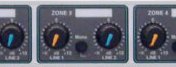 the Citronic Z-5DM. It is small, in a 1U rack mount, very good quality not disturbing the signals at a critical stage, versatile and modestly priced. It is intended for background music in bars and hotels where two different stereo sound sources are required in up to five different areas but there is no harm in employing it for a different purpose. There may be other brands but I haven’t come across any and you may need to go to a specialist supplier to get one. There are similar devices called matrix-mixers which offer multiple inputs and outputs but these are often too complex and quite expensive.
The way it is connected is to take your main desk output, left and right, into the Line 1 inputs and the secondary “ambient” mix, left and right (or split from a single output), into the Line 2 inputs. You can then adjust the level of these for each of the five zone outputs independently, select stereo or mono for each and connect to your outboard equipment and amplifiers as required. The outputs will work balanced or unbalanced as required and, as each one is driven separately at low impedance, the loading from one amplifier will not affect the others and the distances can be quite long allowing the use of powered speakers for instance.
A typical arrangement would be
- Zone 1 — Line 1 only, stereo, balanced outputs, to main amplifiers.
- Zone 2 — Line 1 only, two mono, balanced outputs, to powered speakers in the side aisles and transepts.
- Zone 3 — Line 1 and 2, one mono balanced output, to hearing aid loop amplifier. Adjust the relative levels to suit the user’s requirements.
- Zone 4 — Line 1 and 2, one mono balanced output, to 100V line amplifier for distribution to crêche, chapel and other small rooms.
- Zone 5 — Line 1 and 2, stereo unbalanced outputs, to compressor then on to tape and CD recorders. Preset the levels by monitoring the recording.
All the levels can be adjusted from the convenience of the mixing console area without having to touch anything in the amplifier rack, though once they are set they can generally be left alone. I am told that this sort of multiple output facility is now available on some mixing desks but what we have done here is a simple solution which can easily be retrofitted to an existing system.
Favourite Firefox Extensions (4)
19 Sep 2006 09:10 by Rick
This week—Flashblock (and about:config)
I get irritated by blinking, moving, jumping pictures on web pages so one of the first things I do when installing Firefox is to control the animated images. This control is not on the options menu, you have to edit the configuration direct, but the package makes this easy. Type the dummy URL “about:config” into the address bar for a new tab and you will get a big list of all the variables that can be changed. You can see the ones in bold that you have changed either explicitly using this edit system or implicitly via the options menu and other decisions.
The one we are looking for here is “image.animation_mode”. Double click that line (or right click, Modify) and change the value to “once.” Then animated gifs will stop once they have gone through the first cycle rather than run continuously.
The flaw with this config screen is that there is no checking of the values and nolittle documentation but if you type rubbish in then it will be ignored without comment and use the default.
Now for flashblock. What this does is to replace all Macrovison Flash/Shockwave/Authorware objects by a button. Clicking the button activates the object but otherwise it just sits there without distracting you. As the majority are advertising or useless intro screens, I very rarely click them.
Radio Mic Frequencies
10 Sep 2006 19:36 by Rick
This, as best as I can determine, is the current position in the UK.
VHF Radio Mics
The licence free (deregulated) frequencies are (MHz)
173·800*, 174·000, 174·200, 174·400, 174·600, 174·800*, 175·000*.
Older equipment may be using the 5 frequency set of
173·800*, 174·100, 174·500, 174·800*, 175·000* which, apart from those that are the same (marked *), can’t be mixed with the current set. I am told that, for reliable operation, you can only use four at once. The extra frequencies are there to avoid local interference problems. The relevant regulation is MPT 1311 which limits the power to 2mw and 180KHz bandwidth.
UHF Radio Mics
The licence free (deregulated) frequencies are (MHz)
Ch13 = 863.100, Ch14 = 863.900, Ch15 = 864.500, Ch16 = 864.900
They are usually switchable to find a free channel and are limited to 10mw and 300KHz bandwidth. Many available microphones for sale and hire also have channels 1 to 12 but these should not really be used without a licence. Despite being higher power and bandwidth than the VHF units, the performance is very similar in practice, but with a stricter “line of sight” requirement. Due to variations in the actual frequencies used, transmitters and receivers from different manufacturers are often not interchangeable.
US Radio Mic Frequencies
Grey imported equipment commonly has frequencies named by U numbers (MHz)
U1 = 801.375, U2 = 801.875, U3 = 803.125, U4 = 803.750, U5 = 804.500, U6 = 805.750.
These should not be used in the UK [unless licensed].
Group Mixing for Church Audio
5 Sep 2006 17:26 by Rick
For all I know this may be a well known practice but, as I haven’t seen it elsewhere, I thought it worth publicising for others. It is used for big live concerts but not commonly on smaller systems.
I am talking here about medium sized churches (say 100-300 congregation) with sound systems that have an active operator. In most cases the microphone users can be separated into two distinct groups; the leaders speaking and the worship team singing and playing instruments. Some churches may have a separate system for each group; this often happens when the musicians organise their own PA, but here I am considering an integrated sound system with one mixer.
It struck me that there was a frequent requirement to switch from one section to the other so, for instance, during prayers you would want all the band off to reduce hum and other distracting noises and during singing the minister should be off so that he is not performing a solo. It is inconvenient and error prone to switch/fade all the mics separately so I wanted a way to control them as a group.
Mixers in the middle of the market come in two distinct types; live and studio. In simple terms, live mixers allow the setting of each channel and feeding it to a stereo output pair. 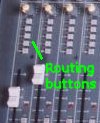 Studio mixers have additional features designed for multi-track recording which normally you would think were not needed for a church service but they can be exploited to solve the problem above. How they work is that each input channel has a set of routing buttons to direct the signal either to the main mix or one or more recording tracks (called groups). There are usually four or eight in stereo pairs so there are three or five routing buttons including the main “mix” routing.
 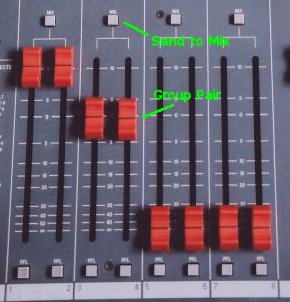 Further across the desk are a set of group faders, usually in pairs, which control the master output level to each track. You can see from this how a multi-track tape recording is made. The feature that makes it useful for our application is that each group output or pair also has a “send to mix” button which does exactly what it says—sends the group output to the main mix controlled by the master fader(s).
So what we can set up is, for example, all leaders mics routed to groups 1/2 and all musician inputs routed to groups 3/4. Then we can fade up or down each section as a whole using the relevant group faders. The channel levels can all be preset to their optimum and all the operator is doing during the service is fading in the right group at the right time. To make it even easier, all the levels can be set so that the group faders are full up to the stop when live so there is no doubt where it should be positioned. I suggest colour coding the caption on each input to show which group it is routed to with corresponding colour captions on the group faders. You don’t use the group output sockets at all and, although it is possible, it is not helpful to have any channel routed to more than one group at a time or main mix.
In practice we use an 8 track desk and use the four group pairs for
- 1/2 (Blue) Leaders—lectern, pulpit, communion table, clip radio mics etc.
- 3/4 (Red) Band—instruments and solo singers
- 5/6 (Green) Choir
- 7/8 (Yellow) Other—see later
- Direct to Mix (White)—CD, tape player and video inputs
The reason for separating the choir from the band is mostly to do with timing, but also the band section is not required for hymns using the organ. Consider a normal service sequence … reading — song — sermon —: The operator sequence would be …
- During the reading have 1/2 up.
- As the song is announced fade up 3/4 so that it is ready for when the band starts playing
- They play the intro and the choir find their pages and stand up
- Just before the first word, fade up 5/6
- Then fade down 1/2. You could cross fade here with two hands but it is not necessary, there is plenty of time
- During the song you have 3/4 and 5/6 live. The choir/band balance can be fine tuned if necessary on the group faders
- As the song ends, fade up 1/2 to be ready for the minister
- Fade down 5/6 (not too quick, allow for natural resonance)
- Fade down 3/4 when done unless another song is due in which case leave them.
You see the sequence — always “up before down,” so there are always live mics. With practice this becomes second nature and allows for most unexpected things e.g. the minister’s mic is already live if he decides to ask for that last verse again, though if you have a worship leader who talks over the singing then they will need to be on the band group not the leaders one. Even on a recording the fades will seem natural and “up before down” means you never get dead air. While a group is off it can be reconfigured for the next item e.g. cutting the lectern and enabling the pulpit before the sermon.
What doesn’t work with our current desk (SoundCraft Spirit Studio LC 16, quite old now)—relatively minor problems:
- The Aux Returns (reverb and FX) are not routable so stay live direct to mix even when the band group is off sometime giving odd effects. We use a foot pedal “FX cut” to control this but sometimes forget to switch it back on again.
- The group faders are in pairs but for this application you really want them ganged. A single stereo fader would be even easier.
- It is difficult to see quickly which routing buttons are pressed and which are not.
- The channel fold-back Aux Sends are still live even when the group is off which means the band gets the minister’s solo singing even if the congregation don’t. On a previous desk (StudioMaster) we had Post-fade Aux Sends on the groups. This allowed us to fold-back the whole of the leader’s group to the musicians so they could hear what was being said when needed but on the current desk we have to do individual channels. This is mainly a problem with clip radio mics.
I haven’t investigated if other desks have better facilities.
The last group, 7/8, we use for inputs that are not wanted on the main mix at all. The “send to mix” button is not active on those groups and we use the group output sockets. They are channels that are only required for the recording and other destinations. How this is organised will be the subject of another post.






 Webmaster