Archive for the ‘Technical’ Category

TapHow email works (1)

10 Jul 2006 16:18 by Rick

Consider an email that you send. It starts when you type it into a client program such as Thunderbird, Outlook Express or Hotmail. It then makes it way to your ISP. From there it goes to the recipients mail server where it is stored until they read it. Simple isn’t it. All except the last stage is controlled by SMTP; Simple Mail Transfer Protocol. Simple in this context is as in “Village Idiot” as we will see later.

An email is a plain text file consisting of some headers (consider this as the envelope) followed by the body which contains the letter. In theory no headers are required at all because you tell the courier who it is for but a destination line starting “To: ” followed by an email address is good. It would also be courteous if it had a “From: ” line and a “Subject: ” but they are not essential to the system. After the headers there is supposed to be a blank line before the body starts. At the end of the mail there will be a line containing a single “.” but you may not be able to see that when it arrives.

The email starts its journey going to your ISP mail server. It knows where that is because it is in your email client configuration. The conversation between the client and the server looks like this—the four letter codes are from the client, the server replies begin with a number.

220 mail.server.com Sendmail 8.6 ready at Mon, 10 Jul 2006 19:21:01
helo
250 mail.server.com Hello goodclient [64.223.17.221], pleased to meet you
        [yes, it really is this chatty—goodclient and the address are your client]
mail From: me@server.com
250 me@server.com ... Sender ok [note, it hasn't checked it really]
rcpt To: you@recipient.com
250 you@recipient.com ... Recipient ok
        [this gets minimum checking but it is important to get it right]
data
354 Enter mail, end with "." on a line by itself
From: me@server.com
To: you@recipient.com
Subject: greetings          [none of these are checked]

How are you today?
.
250 Jhub756hQ Message accepted for delivery [The random characters are an internal id]
        [now you can start again with a new "mail" or exit]
quit
221 mail.server.com closing connection

For a bit of fun you don’t even need an email client, just connect to the mail server on port 25 using telnet and type the commands in by hand. It is rather tedious though and there is little room for error.

The first thing the mail server does is add a new header to the front “Received: from … by …” and perhaps a time stamp, recording where it came from; think of this as a postmark. It then uses the destination (from the “rcpt” command not the “To: ” header) to decide where the email should go next. It will look at the domain part of the address (after the “@”) and ask DNS (Domain Name Service) what the address of the mail server is—this is obtained from DNS “MX” (mail exchange) records. It then goes through the same chatter with the destination mail server.

When the email arrives, after adding its own “Received: ” header to the front, the destination mail server will check that it really does belong here and store it in the file, sometimes called the mail box corresponding to the user (the bit before the “@”) It will wait there for them to fetch it, usually using a different system called POP3 (Post Office Protocol v3). The POP3 server uses a similar set of 4 letter commands to list mail, retrieve it, delete it etc.

Apart from a bit of queuing to cope with delays, that is all a mail server does.

Note that during all this, almost all the headers are ignored. “From: ” is never used for instance and can say absolutely anything! “To: ” may sometimes be used if the message has to be queued but not otherwise. “Cc: ” (Carbon copy) headers are checked and processed as new destination addresses using the same process as above. “Bcc: ” (Blind copy) is stripped out very early before being processed like “Cc: ” so it remains invisible to everyone else.

TapThe big one

7 Jul 2006 23:51 by Rick

This web page is bigger than the universe (only works in Firefox or other compliant browser I’m afraid). It is hard to believe but the page is 9,000,000,000,000,000 pixels on a side (I think the total number of pixels is missing a zero). At 77 pixels per inch that is 1.844 billion miles in each direction—and you can scroll across it with your mouse!

TapAdvent GPS400 File Structure

29 Jun 2006 21:56 by Rick

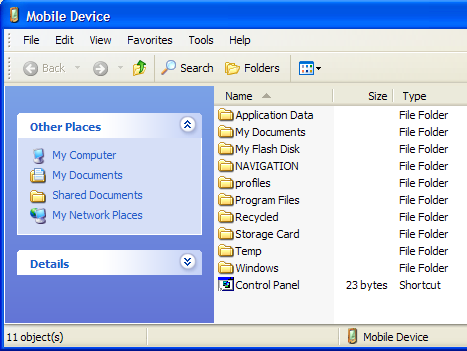
When opening the file system of the Advent, either via the Explore button on ActiveSync or via \My Computer\Mobile Device, then you see the root file structure thus:

Root files system of Advent GPS400

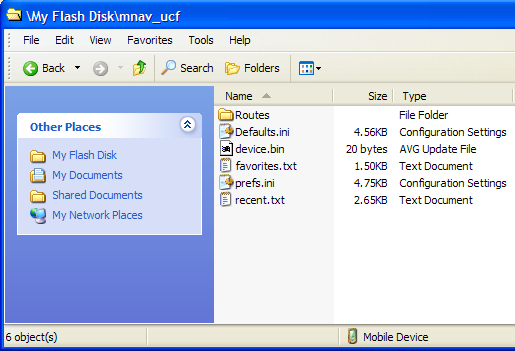
The folder My Flash Disk contains the navigation status, e.g. your saved routes and favourite landmarks.

Navigation files on Advent GPS400

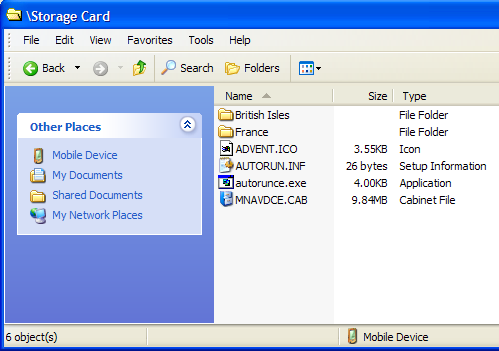
The folder Storage Card is a mount point for the plugin card and contains the loadable copy of the navigation software and your available maps.

Storage Card on Advent GPS400

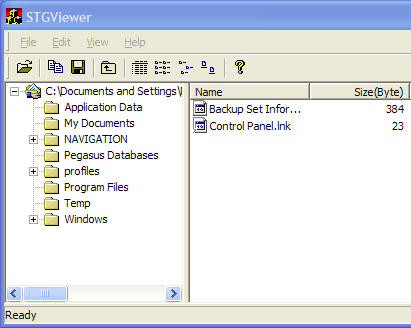
As I mentioned in an earlier post, the backup that ActiveSync makes goes to a file called backup.stg deep under your personal Documents and Settings folder. Using the STGviewer program you can open this and see what is backed up.

Backup files from Advent GPS400

As you can see, Storage Card is not backed up but we didn’t expect that. I have no idea what Pegasus Databases is. What is surprising (and annoying) is that My Flash Disk is not backed up either so it is no good for backup of these variable but important settings. I would suggest taking a copy using normal windows methods.

Initially the My Documents folder on the device is empty but this is where you need to put MP3 files for the built in player. As you can see, this folder IS backed up so the ActiveSync backup function does have some use. The Synchronise files function doesn’t; so, contrary to my earlier suggestion, you may as well leave it switched off.

Select the navigation catagory to find the earlier articles in this series. I think I have just about exhausted the subject for our purposes now, though I suspect that other software could be loaded and the device used as a proper PDA but we have no need for that.

TapWindows phone home

22 Jun 2006 15:13 by Rick

I meant to write about Windows Genuine Advantage communicating back to base every day when it was first announced, but first I wanted to check that blocking it did not hinder the monthly patch cycle—then I forgot. It happens a lot these days.

Anyway, the main problem was first reported at the beginning of the month. I blocked mine immediately and since then we have had Patch Tuesday and all went well.

As far as I can tell there is no need to allow WGA to contact the internet in its own right at all. It does its proper job via an ActiveX call from Windows Update which does the communication to verify that you have a good licence before allowing patch updates.

The sub-agenda function of sending a message back every day is not needed for anything so it is quite easy to block with an outgoing firewall like ZoneAlarm. Just look for the program under W and mark it forbidden for Internet. There is no need to use extra fancy programs like RemoveWGA.

TapItalian hit men

21 Jun 2006 19:41 by Rick

I noticed in April that there had been a lot of activity on this domain from one address 159.149.133.234 using an agent called UbiCrawler. Investigation determined that it was an experimental web crawler from an Italian university. They hit me 45,000 times (12%) during that month (but only 4% of the bandwidth) so I ignored it as a one off experiment that may have gone wrong. There is very little about the crawler around except some academic stuff.

But they have hit again this month—36,000 hits (16%) so far but in only two visits using 5% of the bandwidth. They must be trickling the requests out so they don’t impact the load too much but are close enough together that the analysis thinks that they haven’t left.

I think I have enough of them experimenting on my site, I can’t see them being of any benefit. Now to consider how to block them; by address would be the easiest way. Robert tells me that the address range 159.148/15 is in Latvia (which seems strange). Alternatively I could try by User Agent string which would continue to work if they moved.

TapAdvent GPS 400 – Further snippets

20 Jun 2006 15:39 by Rick

Just a few other bits of information I have picked up in passing.

  • Use the version of ActiveSync supplied. Only use a later one if required by another mobile device you wish to connect to the same PC.
  • The Advent GPS 400 is also knows as a Transonic T5000 in some places in Europe.
  • As of today there are no updated maps available. The ones on the Medion web site shop are the same as the ones that came with it.
  • If you have a storage card reader/writer, it is a LOT faster than transferring files via ActiveSync.
  • There is a little utility called STGViewer which can extract files from the backup.stg archive to recover just the favourites for instance.
  • ActiveSync is a bit of a resource hog on the PC and has no built in facility to stop it. There is another little utility called ActiveSyncToggle to start and stop it on demand which is useful if you don’t sync very often.

TapAdvent GPS 400 and ActiveSync

17 Jun 2006 14:39 by Rick

This is a follow up to my review of the Advent GPS 400 Personal Navigation Assistant.

When you get the device they provide a CD containing a copy of ActiveSync (v3.7.1). This is a Microsoft program that is designed to handle the communication between PDA devices and a PC for things like the synchronisation of address books and the like. Most of that is irrelevant to the GPS though, as it is running Windows CE under the covers, it could probably be made to act like a proper PDA if you loaded the right software. As it is, you can probably ignore most of the features of ActiveSync but it is still worth installing. When you first connect the device it asks you for a name for it and then asks what you want to synchronise. You may as well untick all the boxes as none of them are relevant. When the main ActiveSync screen starts up, select Tools -> Backup/Restore and set it to (incremental) backup each time it connects. While you are at it, you could do a backup now, it will take a few minutes. Subsequently it will back up each time you connect the device but that only takes a few seconds as the only things that have changed will be small files like your favourites.

Pray that you never have to Hard Reset the device using the concealed on/off button underneath. If you do then ActiveSync will think that it is a different device and go through the install process again. It will NOT let you chose the same name.

As I mentioned to Dean in a comment to the original posting, if you want to copy new maps onto the device you need to open it as a plain storage device. You can do this from My Computer or you can use the Explore button in Active Sync. In here you will find the memory card as “Storage Card”. Just use Windows drag and drop to copy the new maps onto the device … and wait, as it takes a very long time. It is best to do it from the computer hard drive rather than direct from the CD. Then to activate the new map use the big Map button on the front screen (I am embarrassed by the length of time it took to discover this). It will then shut down the navigation and the next time you start it will be on the new map. Note: the device is not capable of navigating across the map boundaries e.g. from England through to France.

While we are in Explore mode on ActiveSync, it is worth noting that the files that are changed when you store new favourites etc are in the \My Flash Disk\mnav_ucf\ folder. If you want to take a safety copy then copy them by hand into a location on your PC (usual drag and drop or select, copy and paste). Although we have set the machine to automatically backup in the section above and there is a restore command I have no confidence in it and the backup file is in some obscure internal format so that selective restores are not possible. I would rather be safe.

If you want to use the Sync Files feature of ActiveSync then, as far as I can tell, it only synchronises the \My Documents folder on the device with a matching folder in My Documents\DeviceName on your PC and even then I couldn’t get it to work properly—the Sync seemed to work but when you plugged the device in again it deleted them from the PC. If anyone does get this to work then please let me know. Similarly the device has a MP3 Player mode, when I selected Add Song it couldn’t find any—perhaps they have to be in a particular location, it couldn’t find ones that I know were there on a card from another PDA.

TapPresentation Manager 6 – a software review

12 Jun 2006 20:33 by Rick

I have seen no independent reviews of this software anywhere on the web so I thought it was time that one was done. Note that I come to the product well experienced with using programs of all sorts but never with presentation software, my experience being limited to a brief acquaintance with PowerPoint.

I started with the pre-sales videos available on the maker’s web site. In these a salesman runs through the principle features and it looks very slick. It may be oriented towards the novice computer user but with sufficient power to more advanced things when experience is gained. I then obtained a demonstration copy from a reseller and my view was significantly changed. In fact I used words that Mary says have never been used in our household before. Having composed myself and had a closer look, I still think that it is still more suitable for fertilising roses but at least I can now report what caused that initial feeling.

The impression is that it is written by a games programmer—this may seem rather pejorative but games software is a different discipline to utility software and the requirements and standards are totally different. This impression may be coloured by the “Workspace Launcher,” a glossy red and chrome affair, which may not exist in the full product. The product, when installed, goes into C:\CreativeLifestyles\… not Program Files. This would suggest a very early Windows origin or perhaps even DOS, when all software created its own home directory. In some ways it is fortunate because the default save location for all files (and perhaps for logs and status information) is in the same structure. Program Files is not writeable by unprivileged accounts so it would have failed. A side consequence of this is that all users of the package see the same view, as modified by the previous user—no privacy or independent working—probably not a problem on the projector driver but not so good if anyone can see next Sunday’s sermon slides on the secretary’s computer before it is preached.

Once fired up there is a large but not immediately maximised window much as expected. Maximising the window, which is desirable for the best utilisation of space, disables the Windows task bar—so what if you need to run other software? Best to just stretch the window to nearly full screen. In the standard single palette, single projector view there is a palette area on the left where items for display are chosen, a preview window on the right and a program manager strip showing a pre-prepared slide sequence along the bottom. These are resizeable but, unexpectedly, shrinking one grows the neighbour even to the extent of distorting it to the point of un-usability. For instance the preview window will lose its aspect ratio and the image palette items will change in size rather than there be more (or less) of them. Because of this you can’t be sure that the arrangement in the preview window will be the same as what you will actually see on the projector screen.

The window furniture is all non standard. The title bar and minimise, full screen & close boxes are unrecognisable and there is no menu bar, but in its place there are other buttons along the top which are impossibly cryptic. When it comes to operation then the idiosyncratic features really manifest themselves. In Windows, we are used to the left mouse button being used to select items and the right mouse button to reveal a menu. Not always in this product! In most cases the left button is much more active, causing what it is clicked on to be immediately sent to the preview AND live to the projection screen—no pauses, no “are you sure?” or anything. This is the gamesy aspect of the program, where speed of operation is all important. I can see many red face mistakes being made by newbies where reaction to problems is often to click anywhere to see if something happens. There are a few places where this doesn’t happen, for example clicking a song title opens the item up to reveal the verses, it is clicking the verses which displays them.

The right button is even more quirky. In the palette area a right click sends the item to preview but not to the projector, but in the program manager a menu is displayed. Lastly in the song list, a right click to the title opens a popup for edit—no warning. Looking at areas of the screen in detail the program manager is divided into sequences quite neatly by means of standard looking tabs which work as expected even though they are below the area rather than above. The palette area is tabbed above in a similar way to choose images, movies, songs, and other categories. Each one has sub-categories which are rather harder to navigate using a sort of sideways scroller so, for example, songs can be divided by the user into hymns, liturgical, choruses etc. There is also a (left!) mouse menu to do this by clicking on the category title. Though the song search checks the full text, it doesn’t check all categories, only the one on display so this is less useful that you would imagine.

Using the keyboard arrow keys, up and down selects from some items in the palette area (like verses in an impromptu hymn or Bible passage) and the left and right keys move between prepared slides in the program manager. These are displayed to the projector immediately and the keys are active even if there is another application with focus, even if PM is minimised—so no making sermon notes in a word processor while you are going along, the slides will change as you move the cursor, definitely a manure job!

The popup boxes are another example of variable and non-standard design. Some are entirely navigated like the palette area using the same sort of horizontal scroller mentioned above and some by more familiar windows like tabs. The most obvious thing missing is an OK button. There is a “Close” but it is not clear from that if the changes will take effect. Even then the edits are not saved for the future but are lost when the program is closed with no warning. You need to find the file window for the save option. The popups are modal (you can’t do anything else unless they are closed) and sit on top of all windows, even other applications. Another fertilizer point—try to edit a slide in the program manager (say you spot a spelling mistake) and you will suddenly find it displayed for the world without warning.

Underlying the software the picture is much better. The majority of the data files are XML and those that are not, such as the supplied songs, seem to be in a compatibility mode from an earlier version and save in XML if you alter them. The software seems to be stable and crash proof and runs fast enough to drive video to the projector even on my sluggish AMD1800, though the preview window lurched a bit. I found a few things that didn’t work which I have not managed to track down—PowerPoint display couldn’t find the program, perhaps because I have MS Office and OpenOffice.org installed and the latter is set as the default for .ppt files. I was expecting it not to need either. Printing a service outline produced a page with a row of boxes down the left just containing a red X, I don’t know what is wrong there, I have a fairly standard Canon albeit connected over the network. It is possible it is trying to use the browser to print XML and I have Firefox installed. Audio files displayed a quaver in the program manager but didn’t seem to do anything—do I need a media player of some sort? I have a suspicion that it may be confused by my scroll wheel mouse which is rather non-standard (Trust Ami Pro).

In summary, this is a product where version 6 does truly indicate a package that has been through a long period of growth from the earliest days of ubiquitous personal computers. The internal functions are up to date and the performance can’t be faulted—it is such a shame that the user interface has not grown up with it. I agree that it is not easy with an established user base to change things like this but with suitable compatibility modes for earlier users to migrate, the old fashioned ways do not need to be inflicted on a new generation.

Now having completed an overview of the software that I thought we would be getting, I will have to take a look at some of the competition to see if they are any better—perhaps that is why there are so many of them—over 40 at the last count in what must be a rather limited market.

TapEntertaining spam

10 Jun 2006 13:12 by Rick

I thought those two words were contradictory, except perhaps a good chortle at a particularly silly 419, but while checking my spam trap today I found this one. A spammer with a sense of humour? or a fortuitous harvesting of random text?

Vuja De: That feeling youve never been here before.

Woods Incomplete Maxims: Alls well that ends. A penny saved is a penny.

TapFutility

8 Jun 2006 09:08 by Rick

A futility is a small, free program that looks as though it is going to be useful in a modest sort of way: for example, it purports to uninstall the bits of Norton Antivirus or Real Player that you can’t get rid of, or uploads your Palm address book to an iPod. However, after you have downloaded the thing, you discover from the readme that it needs the 22MB .NET 2.0 framework installed before it will work. Stuff that for a game of soldiers.

More up to the minute definitions in Verity Stob’s article for The Register.

^ Top